> ## Documentation Index
> Fetch the complete documentation index at: https://docs.escrivalimited.com/docs/llms.txt
> Use this file to discover all available pages before exploring further.
# Farm Inputs & Agri Shop
Farming requires the right tools at the right time. The Sasini Agri Shop is a built-in digital marketplace designed specifically for our registered farmers. Instead of traveling to the factory or paying out-of-pocket, you can order certified inputs directly through the app. The costs are simply deducted from your future harvest payments once the items are delivered.
***
## 1. Browsing the Agri Shop
The Agri Shop is organized into clean, easy-to-navigate tabs so you can find exactly what your farm needs in seconds.
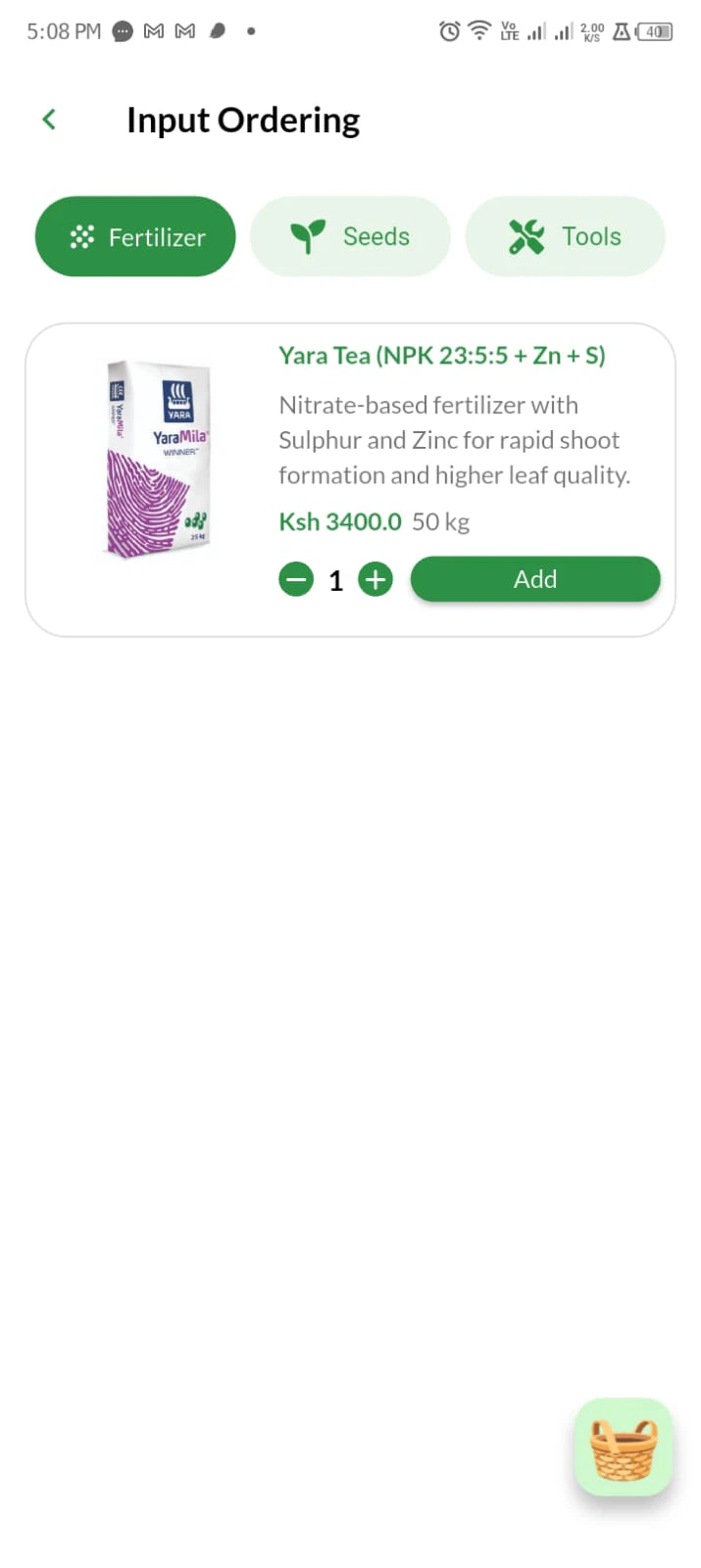
Open the **Agri Shop** page. At the top of the screen, you will see a sliding tab menu categorizing our inventory:
* **Fertilizers:** Access certified NPK, foliar, and organic fertilizers.
* **Seeds:** Order high-yield tea clones, coffee seedlings, and cover crops.
* **Tools:** Browse pruning shears, harvesting baskets, and protective gear.
* **Sasini Retail (Coming Soon):** Exclusive access to finished Sasini consumer products.
Tap on any item to view its details, price, and application instructions. Use the **(+)** and **(-)** buttons to adjust the quantity. The app instantly calculates your total estimated cost on the screen.
Tap the **Add to Cart** button. A brief success message will appear, confirming the item is queued for checkout.
**Under the Hood:** When a user browses, the system performs a real-time inventory check. If an item drops below the reserve threshold at the warehouse, the API instantly grays out and gides the item automatically until the item is restocked, preventing overselling.
**Resilience:** Cart data is not just stored locally. It is serialized and pushed to a secure Redis cache on the backend. This means if a farmer's phone battery dies halfway through shopping, their cart is perfectly preserved upon their next login.
***
## 2. Checkout & Order Submission
Once you have gathered everything you need, it's time to submit your request to the factory.
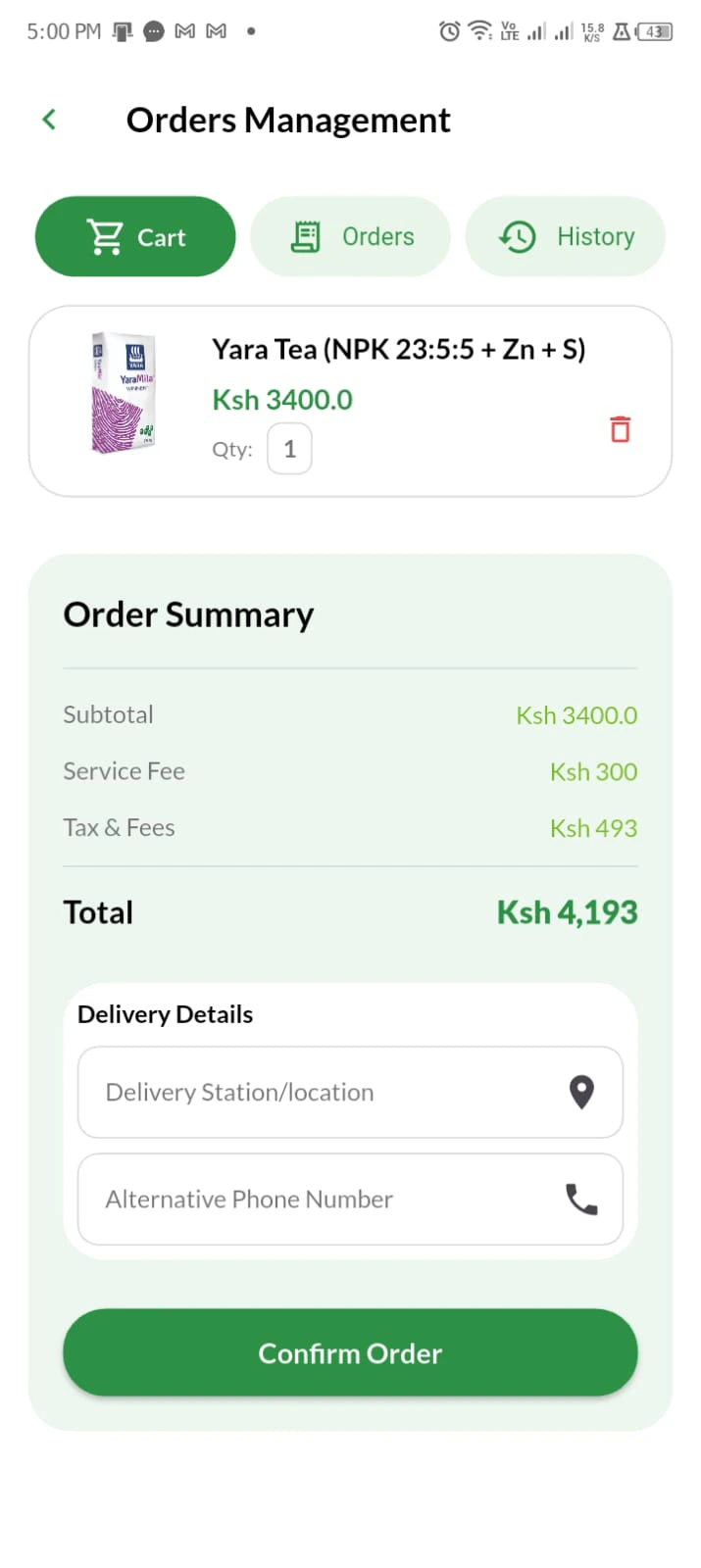
Navigate to the **Cart** tab under the Orders Management page. Here, you will see a summary of all selected items, quantities, and the grand total. You can safely remove items or adjust quantities here before finalizing.
Before tapping 'Checkout', the system requires delivery validation. You must provide:
* **Alternative Phone Number:** In case your primary registered number is off network during delivery.
* **Delivery Location:** Pinpoint exactly where the truck should drop the inputs (e.g., "Main Farm Gate" or "Secondary Plot").
Tap **Submit Order**.
1. The app will emit a clear **Success Beep Tone**.
2. A green confirmation popup will appear on your screen.
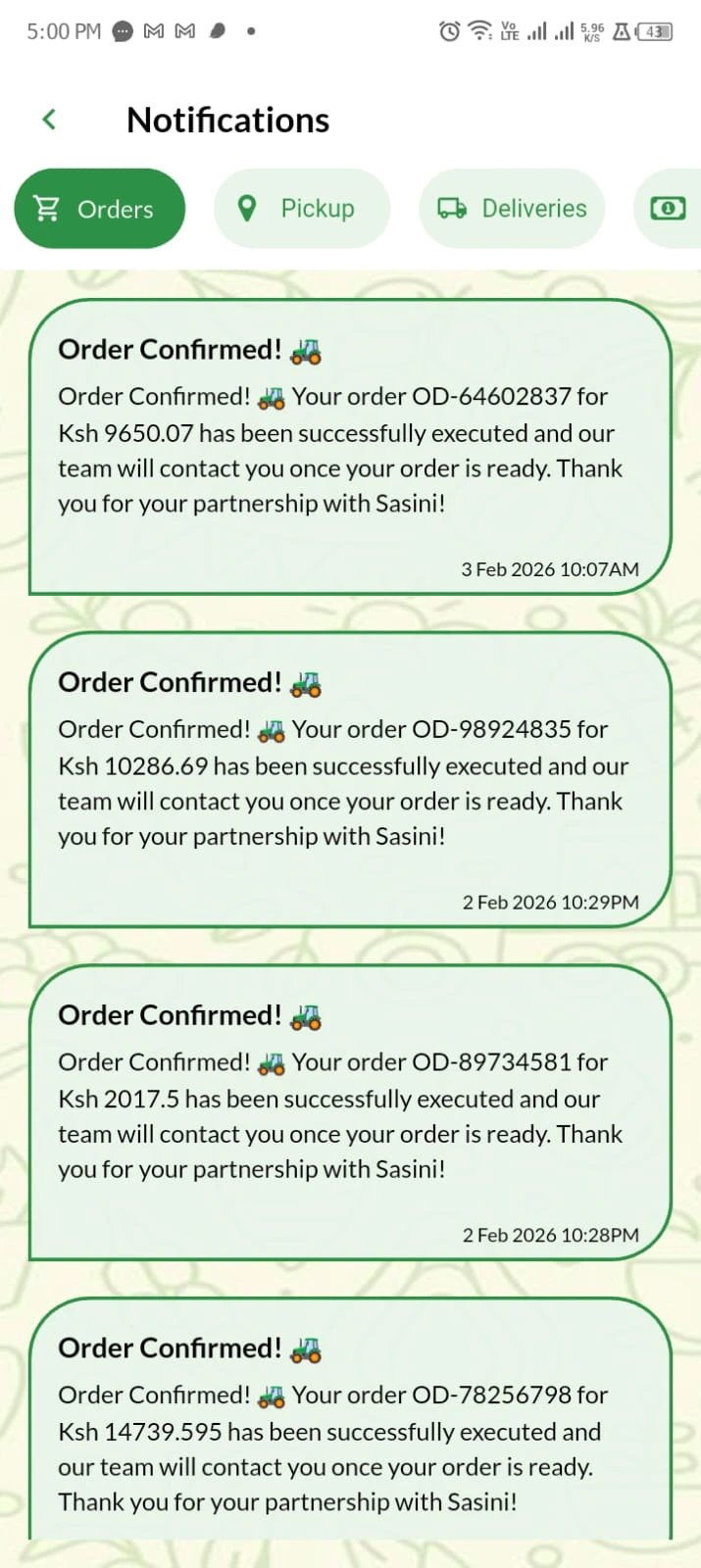
3. A unique **Order ID** (e.g., `OD-***849***`) is generated instantly and also sent to your notifications page under **Orders** Tab.
Navigate to **Dashboard** and click the little **Bell Icon** at the top center.
1. Navigate under **Orders** tab and see the details of your order.
2. Now you have successfully placed you order and Sasini will reach out incase of anything.
**Under the Hood:** Upon clicking 'Submit', the frontend encrypts the cart payload and sends it to an asynchronous message broker (like RabbitMQ). This ensures that even if thousands of farmers order fertilizer at the exact same second, zero orders are dropped. The server processes them sequentially and generates immutable Order IDs.
**How Payment Works:** You do not need M-Pesa or a credit card to use the Agri Shop. By submitting the order, you authorize Sasini to deliver the goods and securely deduct the exact total from your upcoming crop delivery payments.
***
## 3. Order Tracking & Management
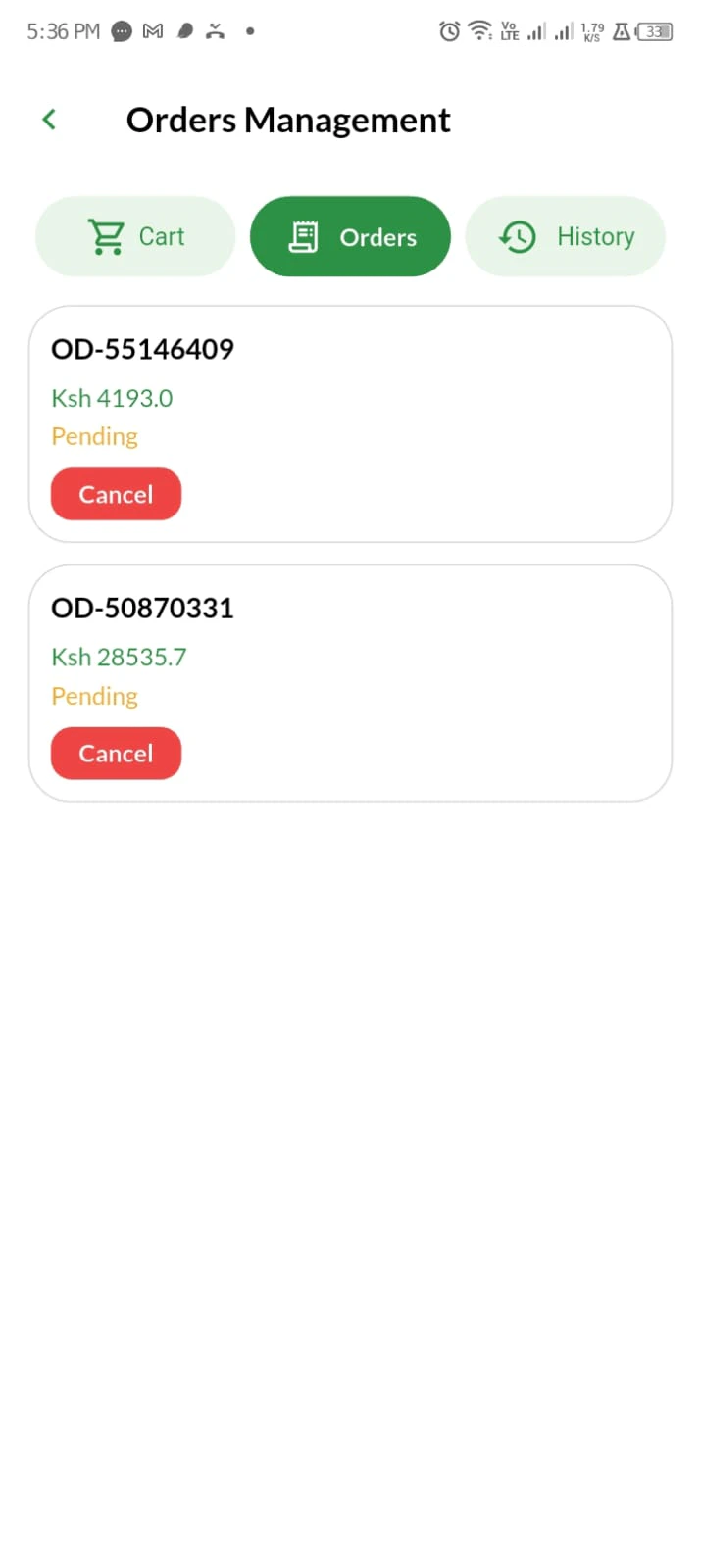
Transparency is critical. The **Orders Management** page acts as your personal logistics dashboard, divided into three stages: Cart, Orders, and History.
### The 4 Order Stages
Every request moves through a strict lifecycle:
1. **Pending:** Your order has been received but factory staff haven't started packing it yet. *(You can only cancel your order at this stage).*
2. **Processing:** The warehouse team is currently packing your items onto the delivery truck.
3. **Completed:** The items have been successfully delivered to your farm.
4. **Cancelled:** The order was aborted by you or rejected by the factory (e.g., out of stock).
Check the **Orders** tab to track anything that is currently *Pending* or *Processing*.
Check the **History** tab to see a complete ledger of all your *Completed* and *Cancelled* orders from the past seasons.
Whenever your order changes stages (e.g., moves from Pending to Processing), in **My Orders** page under the **Orders** tab, the change reflects automatically for easy tracking.
**Under the Hood:** Order statuses are governed by a strict Finite State Machine (FSM) in the database. A "Completed" order cannot mathematically revert to "Pending". This ensures the deductive payment ledger remains perfectly synchronized with the physical inventory ledger.
**Cancellation Rule:** You can safely remove items from your cart or cancel a **Pending** order. However, once an order status shifts to **Processing**, it cannot be cancelled via the app, as the goods are already in transit.