> ## Documentation Index
> Fetch the complete documentation index at: https://docs.escrivalimited.com/docs/llms.txt
> Use this file to discover all available pages before exploring further.
# Authentication Lifecycle
To ensure a highly secure and customized experience, the Sasini App utilizes a strict, multi-step identity pipeline. Whether you are registering for the first time, establishing a new session, or updating your credentials, our systems operate on a **Zero-Trust Architecture**. This infrastructure actively monitors for anomalies and requires explicit verification at every stage to guarantee that your harvest records and financial payouts remain permanently protected.
***
## Phase 1: Registration & Onboarding
### 1. Localization & Language Selection
The Sasini ecosystem operates across diverse demographics. To ensure accurate data entry and seamless navigation, the onboarding process begins with interface localization.
The onboarding process begins with interface localization i.e. Selection of preferred language and identity selection to determine the user's specific permissions.
The welcome screen presents two distinct pathways:
Sasini Farmer: For official tea/coffee producers.
Guest / Buyer: For marketplace participants and external stakeholders.
**What happens under the hood:** The moment the app launches, it initiates a secure "handshake" with the Sasini servers. We assume every connection is potentially hostile. The backend instantly scans the connection for SSL/TLS 1.3 encryption certificates to ensure the network hasn't been compromised before allowing the app to load.
Users must select between **English**, **Swahili**, **French**, or **German**. This selection executes a global state update, translating all UI components and instructions.

**Post-Registration Adjustments:** If you select the wrong language during onboarding, you can always update your localization preferences later from the primary Settings menu.
### 2. Farmer Validation Protocol
Account creation is strictly limited to authorized personnel. Before establishing a profile, the system must verify the user against the central Sasini factory database.
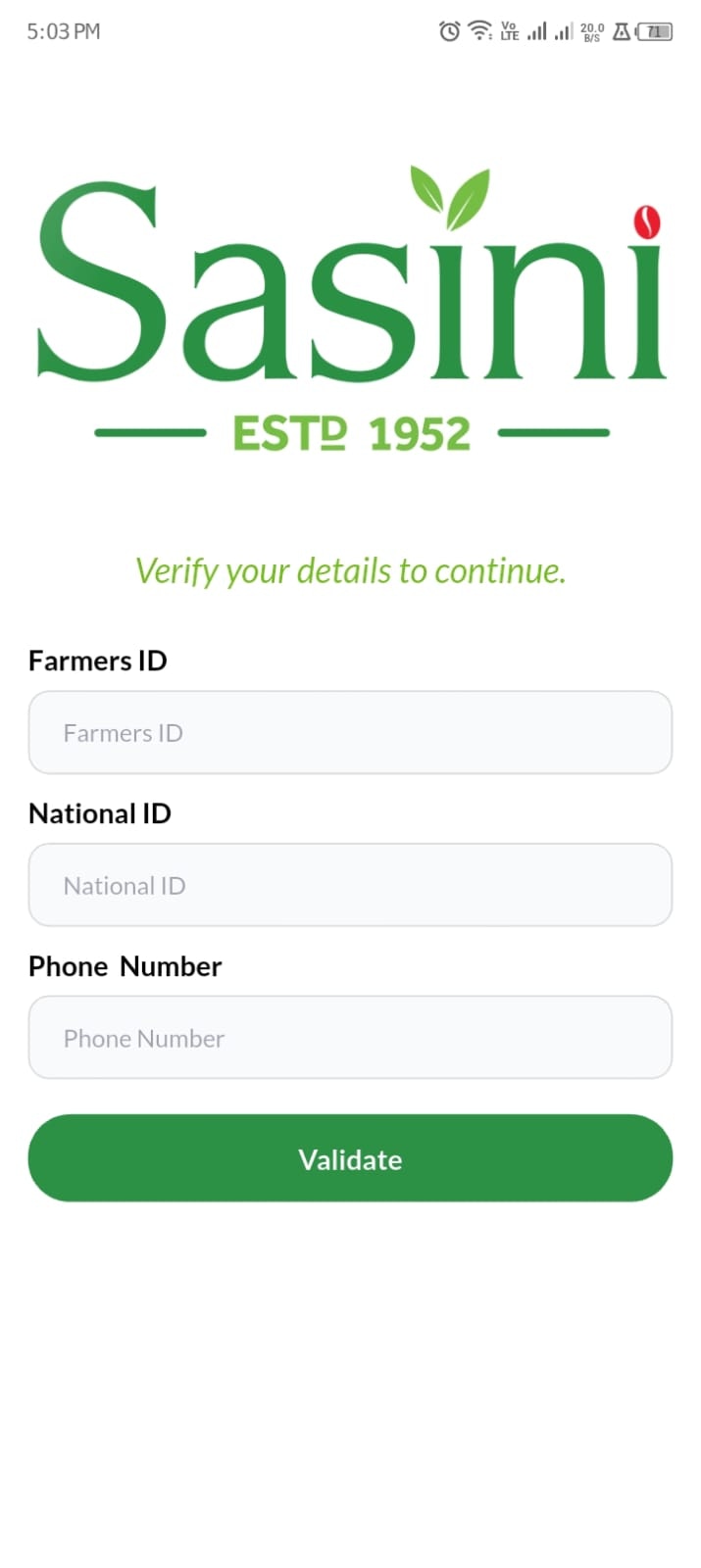
The user is required to input their officially registered **Sasini Farmer ID**, **National ID** and **Phone Number**. This establishes the crucial link between the digital account and real-world delivery records.
Guests and Buyers bypass the ID validation and proceed directly to email registration (Account Creation Phase).
**What happens under the hood:** To absolutely prevent SQL Injection, the backend sanitizes the Farmer ID, National ID and Phone Number using parameterized queries. It strips the input of executable code before querying the encrypted database. Invalid IDs throw a generic `Validation Failed`.
If verified, the app retrieves the farmer's foundational profile data and authorizes progression to the security setup phase. If invalid, the process is securely halted.
**Locating Your ID:** Your official Farmer ID is printed on your physical delivery receipts and factory registration documents. If you have misplaced it, please contact your local Sasini extension officer.
### 3. Account Creation & MFA Setup
Following validation, the user must secure their digital identity using Multi-Factor Authentication (MFA) parameters.
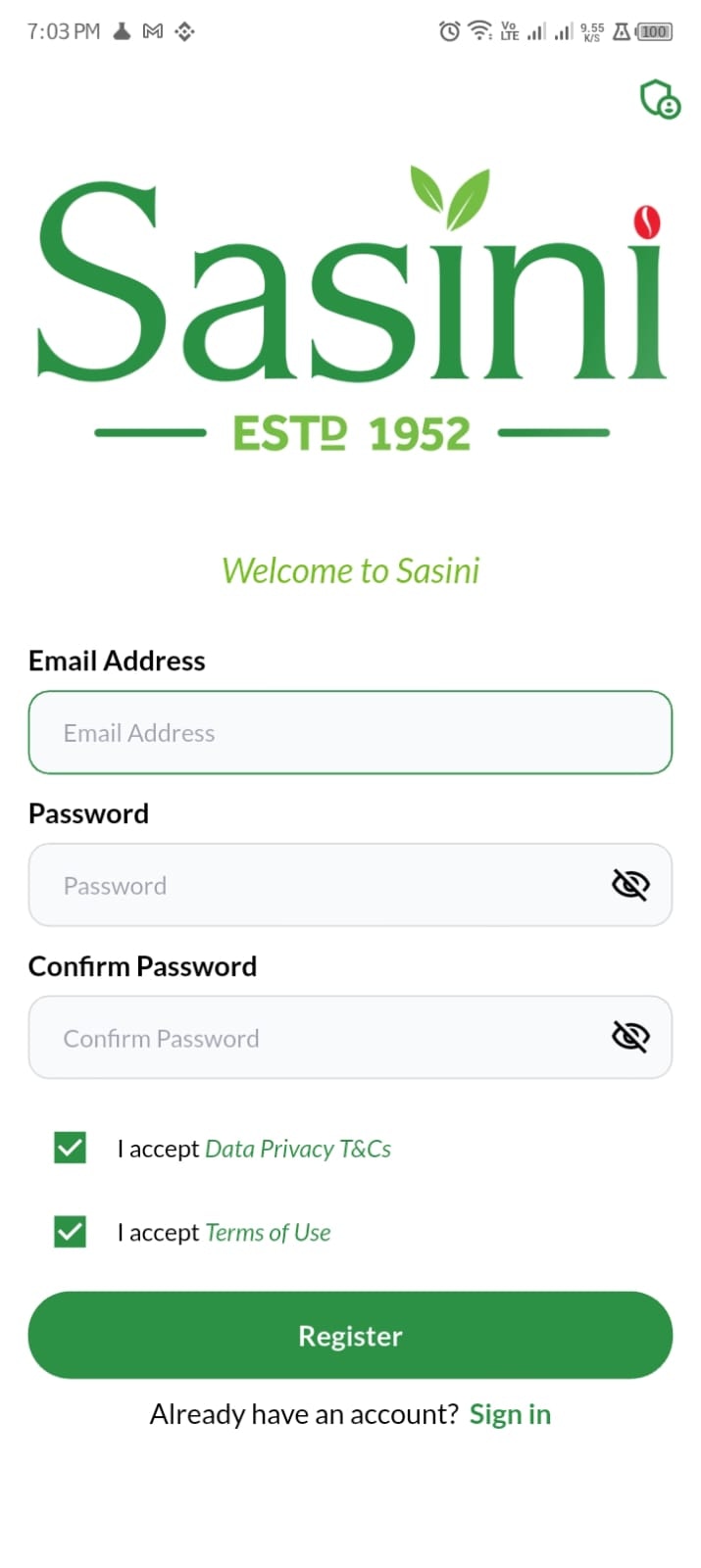
The user registers their primary **Email Address** and establishes a secure **Password** for future authentication.
**What happens under the hood:** When the user taps “Submit,” the password is encrypted locally on the device before transmission, so even if intercepted over public Wi-Fi it appears as an unreadable string of randomized characters. Sasini never stores actual passwords—the backend converts them using a salted cryptographic hashing algorithm, creating a one-way hash that makes stolen database data useless to attackers. 🔐
To protect sensitive financial ledgers, the platform strictly enforces robust password complexity requirements. The password must contain:
* At least one **uppercase letter**
* At least one **lowercase letter**
* At least one **number**
* At least one **special symbol** (e.g., @, #, \$, !)
Users must formally acknowledge and accept the **Terms of Use** and **Privacy Policy** to proceed.
**Credential Security:** Avoid using easily guessable information such as your name or birth year. For optimal security, consider using a dedicated Password Manager application to generate and store your credentials.
### 4. Email Link Verification
To eliminate fraudulent registrations and guarantee secure communication channels, the platform mandates a rigorous email verification loop.
**What happens under the hood:** Verification links contain cryptographically secure tokens generated using a CSPRNG. These tokens are unique, tied to the request context, and expire quickly. Once used, the system immediately invalidates the token to prevent replay attacks or reuse of old links.
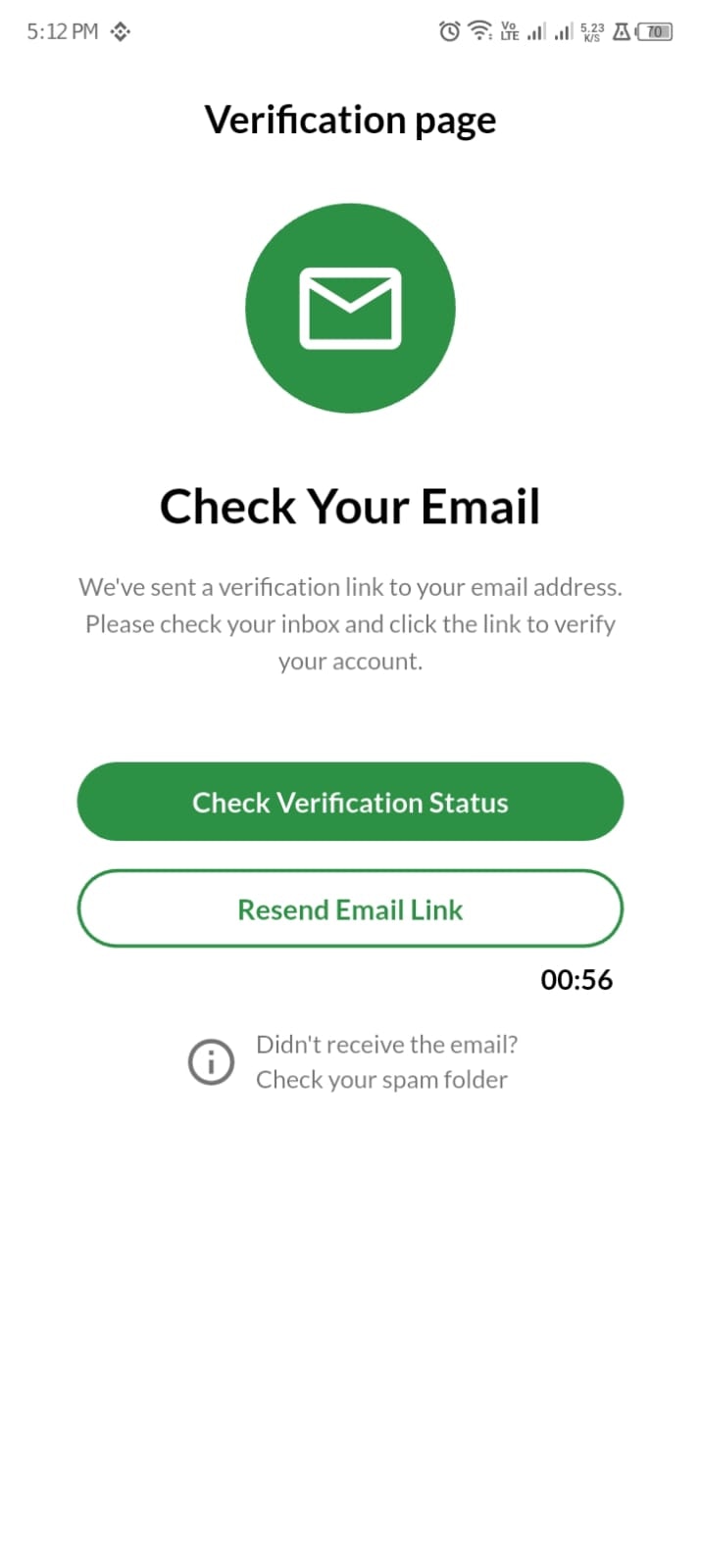
Upon submitting the registration payload, the server dispatches a secure, time-sensitive verification link to the registered email address.
The user must navigate to their email client and click the embedded secure link. This verifies cryptographic ownership of the designated address.
To prevent server spamming, if the email is not received immediately, the system enforces a mandatory **60-second cooldown** before a new verification payload can be requested.
**Troubleshooting:** If you do not see the verification email in your primary inbox, please ensure you check your 'Spam' or 'Junk' folders, as strict security emails are occasionally filtered by providers like Gmail or Yahoo.
### 5. Profile Finalization & Dashboard
Upon successful token verification, the backend commits the registration data and provisions the user's secure environment.
**What happens under the hood:** After verification, the server issues a secure **JWT session token** used to authenticate all user actions, with frequent rotation to limit hijacked sessions. The event is also recorded in an **immutable, write-only audit log** to ensure permanent traceability and ongoing security monitoring.
The user's Unique Digital ID is finalized, and the application securely syncs historical harvest data, delivery logs, and payment ledgers from the factory servers.
The user (farmer) is routed directly to the main **Dashboard**, while the Guest/Buyers are routed to a similar dashboard only that high-stakes modules such as deliveries and payments are injected after the user role is validated as a registered farmer finalizing the onboarding sequence.
***
## Phase 2: Login & Access
Subsequent access to the platform requires strict authentication. While streamlined for the user, the backend executes complex risk analyses during every login attempt.
### 1. Credential Submission
The user inputs their verified Email Address and Password into the authentication portal.
**What happens under the hood:** The backend retrieves the hashed password and applies the same algorithm to the newly typed password. To prevent "Timing Attacks," the server uses a constant-time comparison, taking the exact same microsecond to respond whether the password is right or wrong.
***
## Phase 3: Account Recovery & Settings
To accommodate device sharing and administrative updates, the Sasini App provides a comprehensive, highly secure credential management suite.
### 1. Session Termination (Logging Out)
Users are strongly encouraged to terminate their sessions when accessing the platform via shared hardware.
Navigate to the Settings profile and tap **Log Out**. The system will present a confirmation dialog to prevent accidental session termination.
**What happens under the hood:** Clicking "Log Out" does not just clear the screen. The frontend deletes the secure token from local storage, while the backend actively adds that specific session token to a cryptographic "Blacklist." Even if a hacker managed to copy the token right before the user logged out, the server will reject it entirely.
**Device Management:** If you ever lose your mobile device, please contact Sasini Support immediately. Our administrators can manually revoke all active sessions remotely, securing your account instantly.
### 2. Account Recovery (Forgot Password)
In the event of lost credentials, users can securely re-establish access without compromising historical data.
Select **Forgot Password** from the primary authentication screen and provide the registered email address.
The system dispatches a cryptographic reset link. To minimize the window of vulnerability, this link automatically expires in exactly **15 minutes**.
**What happens under the hood:** To prevent hackers from guessing which emails are registered, the backend will *always* say "If this email exists, a reset link has been sent," regardless of whether the email is valid. The link sent contains a securely signed URL payload that can only be decrypted by our servers.
The user clicks the authorized link and submits a new password adhering to the platform's strict complexity parameters.

### 3. The Strict Re-authentication Loop
When a user actively chooses to update their password from within the application, the system enforces a strict re-authentication loop. This architectural decision prevents unauthorized password modifications if an unlocked device is compromised.
Upon selecting **Change Password** within the profile settings, the application deliberately and immediately terminates the active session.
The user is routed to the login portal and must successfully authenticate using their *current* credentials, verifying physical ownership of the device.
Following successful authentication, the system intercepts the standard routing and presents a verification dialog: *"Identity Verified. Click Continue to change your password."*
The user inputs the new parameters. Upon successful submission, the system executes the update and **automatically terminates the session a second time**.
The user logs in with the newly established credentials, verifying database synchronization.
**What happens under the hood:** When the password is changed, the backend doesn't just hash the new password; it generates a brand new cryptographic "Salt" (a random data string) and destroys the old one. It also instantly revokes all active sessions on any other devices, forcing anyone using the account to re-authenticate immediately.
**Proactive Security:** For maximum account integrity, cybersecurity standards recommend updating your password every 90 to 120 days.
### 4. Account Deactivation
Users maintain full autonomy over their digital footprint and may request account deactivation at any time via the Security Settings.
**Critical Notice:** Account deactivation is **reversible** whereas Account deletion is **irreversible**. Historical harvest weights, payment ledgers, and AI-driven agricultural insights cannot be recovered once purged.
The user selects **Deactivate Account** and must verify their intent via MFA to prevent accidental deletion.
For **Deleted** accounts, the account is transitioned into a suspended state for 30 days. But for **Deactivated** accounts, the user may rescind the deactivation request simply by executing a successful login or Contacting the Support team for activation purposes.
Following the 30-day window, the system executes a permanent data purge.
**What happens under the hood:** To maintain the integrity of Sasini's overall agricultural and financial analytics while complying with data protection laws, the backend performs a "Cascading Anonymization." The user's personal identifiable information (PII) like Name, Email, and Phone Number are permanently deleted and replaced with randomized string values. Their harvest weights and dates remain for corporate accounting, but they can mathematically never be traced back to the individual farmer again.